
AI UI Designer — See Your Product Before You Code
A free design Skill for Codex and Claude Code. Turn product discussions into editable SVG wireframes and UI designs, then review and refine them before implementation.
Free Skill. Use your own coding assistant and model access.
Static SVG designs. Application code is a separate task.
Discuss an idea. See the design.
See a Product Discussion Take Shape
A written plan can leave the layout open to interpretation. Use AI UI Designer to make the screen part of the conversation, so you can point to the structure you want to change.
Product brief
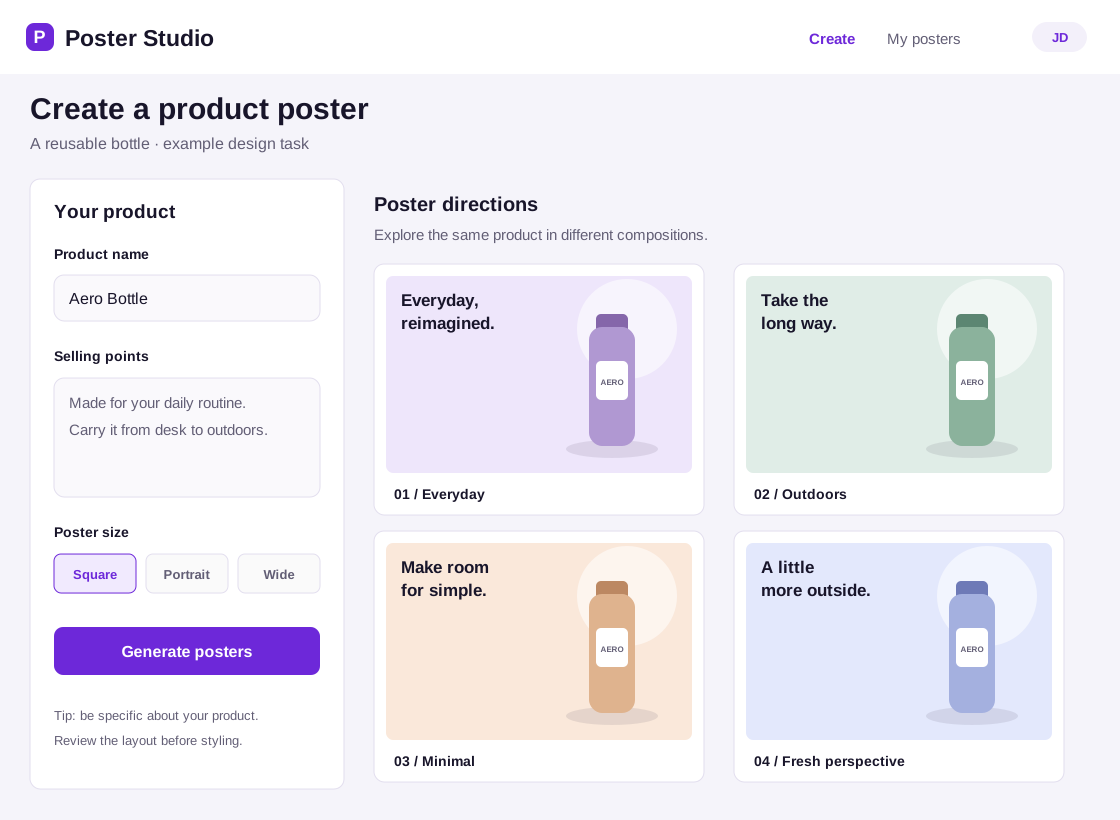
Design a product-poster workbench with a product name, selling points, poster sizes and a results grid. Keep the inputs on the left.
Revision request
Give the poster results more room. Narrow the input panel while keeping the product name, selling points and all three size options.
Initial wireframe
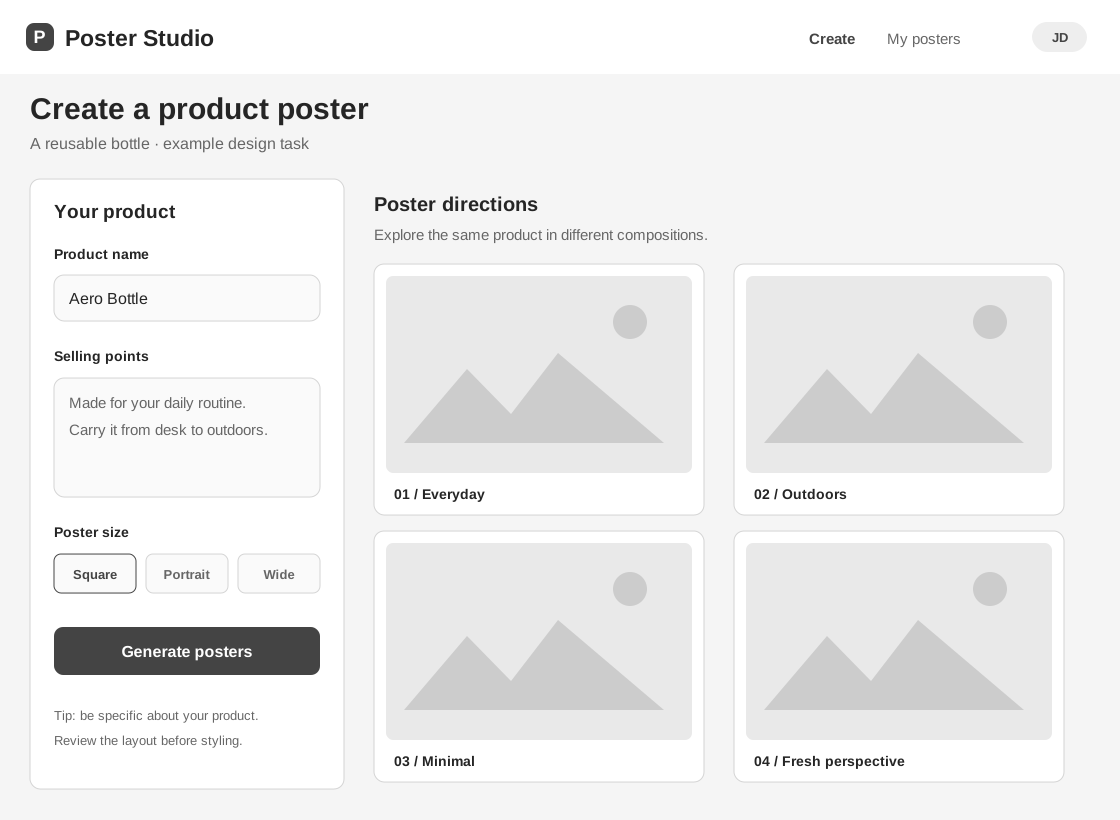
Revised wireframe
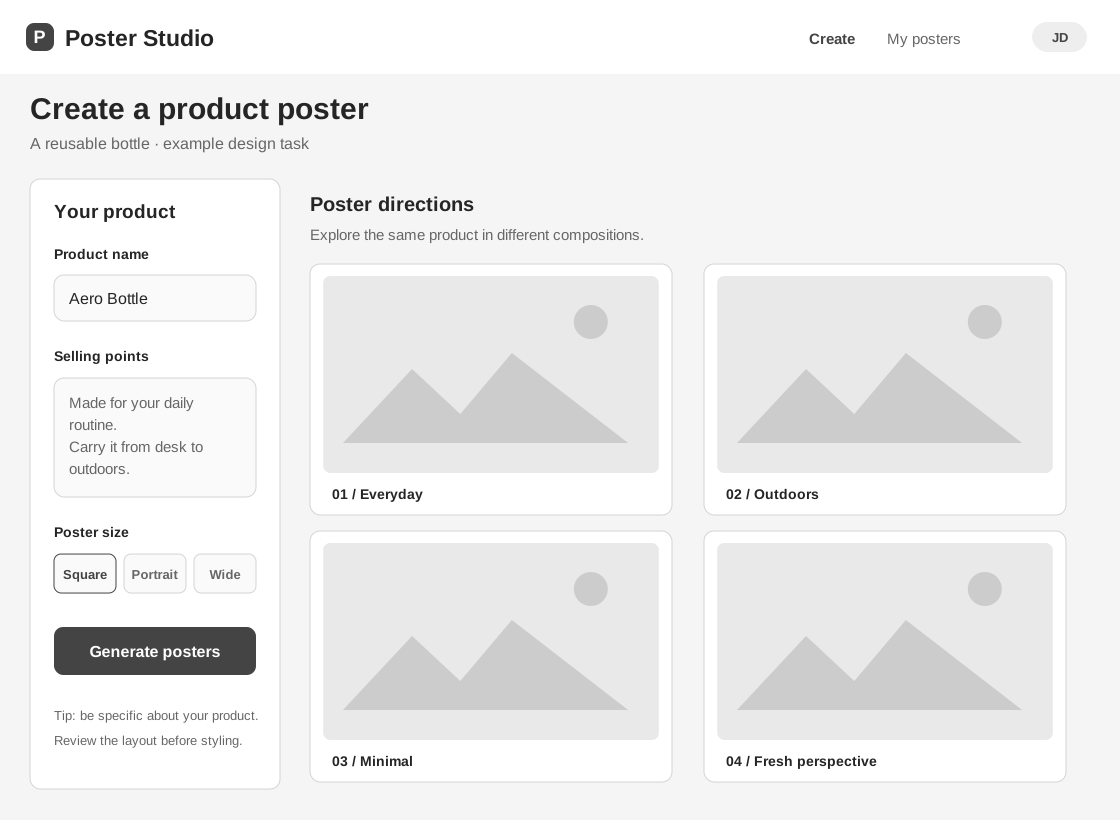
The revised SVG keeps the same product fields and poster sizes while expanding the results area. Compare both files to inspect the change.
This example follows one design revision. It does not run poster generation or show a working application.
What Is AI UI Designer?
Explore Structure, Style, and Product States
Bring the decisions that affect your product into view before implementation. Start with the pages and states needed for the current discussion.
Page structure
Review information hierarchy, input fields and the primary action. Check where users start, what they need to enter and where results appear.
Visual direction
Discuss typography, spacing, colors and artwork on a visible design. Start with a wireframe or go directly to colored UI when that fits the task.
Product states
Plan empty results, loading, success and failure states. Make the next action clear when something is missing or a request does not succeed.
Mobile layouts
Review how content, navigation and actions fit a smaller screen. Adapt the layout without dropping important product inputs or decisions.
From Product Brief to Reviewed Design
Use AI UI Designer in the coding environment you already work in. Keep the conversation and design references together as the product becomes clearer.
Install the free Skill
Follow the installation guide for Codex or Claude Code. You provide the coding assistant and model access; downloading the Skill does not require a website account.
Discuss, review, revise
Describe the product and its main action. Open the generated SVG, then request a specific change. Continue refining the same design as you clarify the requirements.
Use the reviewed design
Give your implementation task the reviewed design files and requirements. Check the built result against that reference; the Skill does not automatically guarantee a matching application.
If your assistant is in a mode that prohibits file changes, respect that restriction before generating design files.
Compare the Planning Workflows
AI UI Designer adds a visible reference to a product discussion. Choose the workflow that gives you enough clarity to decide what to build.
| Planning task | Text-only discussion | With a design reference |
|---|---|---|
Discuss the layout | Describe the screen and imagine the arrangement. | Review the position of fields, actions and results. |
Give feedback | Clarify the picture you have in mind. | Point to a section, field or state and request a change. |
Prepare implementation | Use written requirements as the reference. | Use written requirements together with reviewed SVG designs. |
Start with a Ready-Made Scene Pack
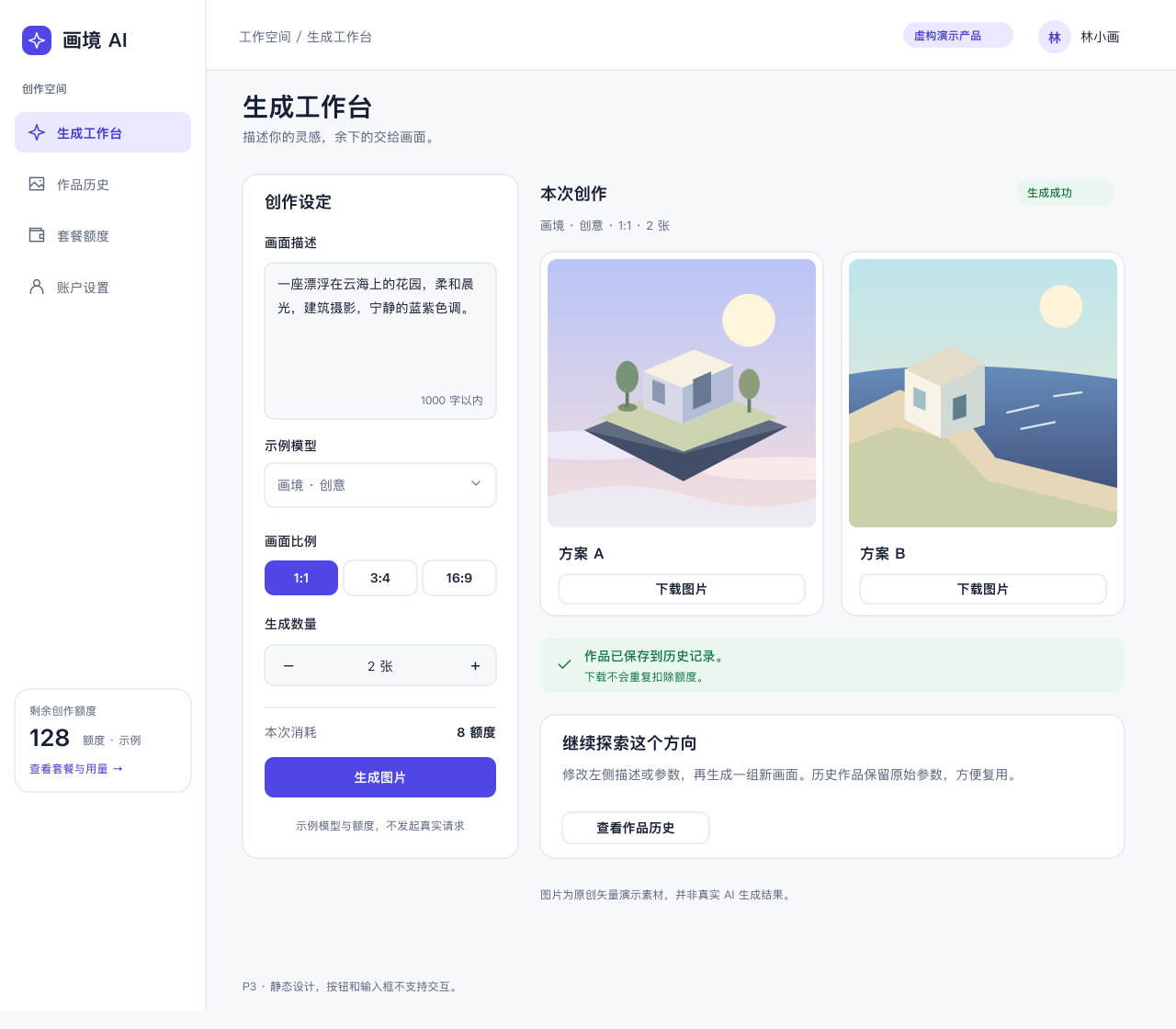
The free Skill works without a scene pack. Website pack downloads require an active paid subscription.
AI UI Designer FAQ
Is AI UI Designer free?
Yes. The Skill is free to download and use, including designing from your own brief and importing compatible scene packs. Your coding assistant and model usage are separate. Optional scene-pack downloads from this website require an active paid subscription.
Does it work with Codex and Claude Code?
Install the Skill in the matching skills directory for your assistant, then invoke it with your design request. The installation guide covers both environments. Local scene-pack helpers require Python 3.9 or later.
Can I review designs while planning?
Yes, when your environment permits creating and displaying design files. Ask for the relevant wireframe or UI, open the SVG and continue discussing it. A planning mode that prohibits writes must be respected; preview support depends on your assistant and available tools.
Can I revise an existing design?
Yes. Give concrete feedback about the existing design, such as moving a section or enlarging the results area. AI UI Designer provides instructions for continuing the task and preserving reviewed content. Inspect the revised files before treating the design as agreed.
Does it generate a working application?
This design workflow produces static SVG wireframes and UI designs. Drawn buttons and forms do not run authentication, payments or other business functions. Building and testing the application is a separate task.
Do I need a paid scene pack?
No. You can start from your own product brief. A scene pack adds optional page designs, business scenarios, states and themes for a particular type of product. Preview its contents before deciding whether that starting point is useful.
See Your Next Product Before You Build It
Bring your idea into view with AI UI Designer. Discuss the layout, inspect the design, and use the reviewed version as a reference for implementation.
Free Skill · Codex & Claude Code · Editable SVG designs